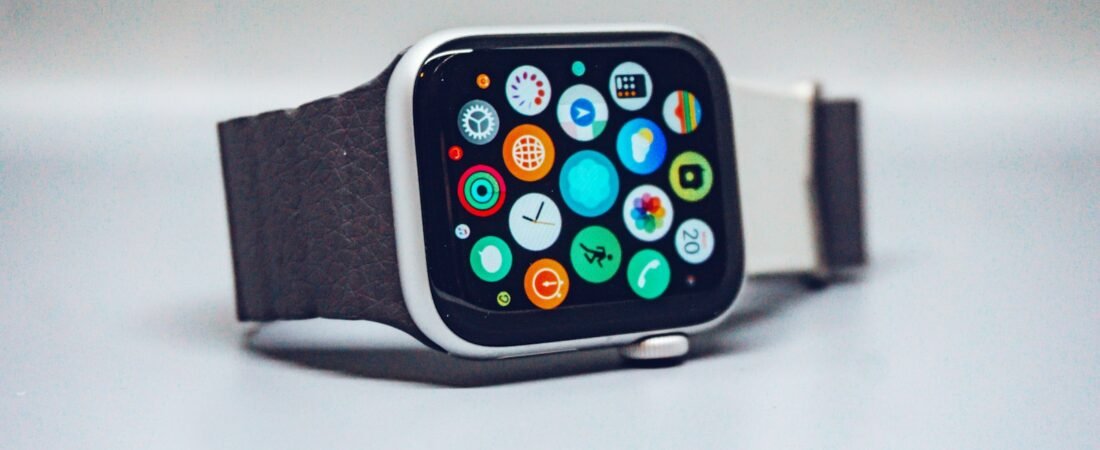
Quick answer: Press and hold the side button and the Digital Crown together for at least 10 seconds, and let go when the Apple logo appears. Don’t do this while the watch is installing a software update.
An Apple Watch that freezes mid-workout or stops responding to taps is rare, but when it happens it can feel like the watch is broken. Usually it isn’t. A force restart clears whatever got stuck and takes less than a minute.
Try a normal restart first
If the screen still responds a little, press and hold the side button until the power options appear, tap the power icon, then slide to turn it off. Wait a few seconds and hold the side button again to turn it back on. A normal restart is gentler and should be your first choice.
How to force restart
- Press and hold the side button (the flat button below the crown) and the Digital Crown at the same time.
- Keep holding for at least 10 seconds. The screen may go black first. That’s normal.
- Release both when you see the Apple logo, then wait for the watch to finish starting up.
Important: If your watch is showing a progress wheel or update screen, leave it alone, even if it seems slow. Force restarting during an update can cause bigger problems. Keep it on its charger near your iPhone and give it time.
Watch still won’t turn on?
- Charge it for 30 minutes. A completely flat battery looks exactly like a frozen watch. Make sure the back of the watch and the charger are clean, and that the charger is properly connected.
- Try a different charger and power adapter to rule out a faulty cable.
- Look for a red lightning bolt, which simply means it needs more charge.
- Still nothing? Contact Apple Support or visit an authorised service provider.
Stop it from freezing again
- Keep watchOS updated through the Watch app on your iPhone (General → Software Update).
- Remove watch apps you don’t use. Fewer apps means less to go wrong.
- If one app always triggers the freeze, delete and reinstall it.
- As a last resort, unpair and re-pair the watch with your iPhone. It’s backed up automatically during unpairing.
Want more from your Apple gear? See 12 hidden iPhone features and our complete macOS guide.