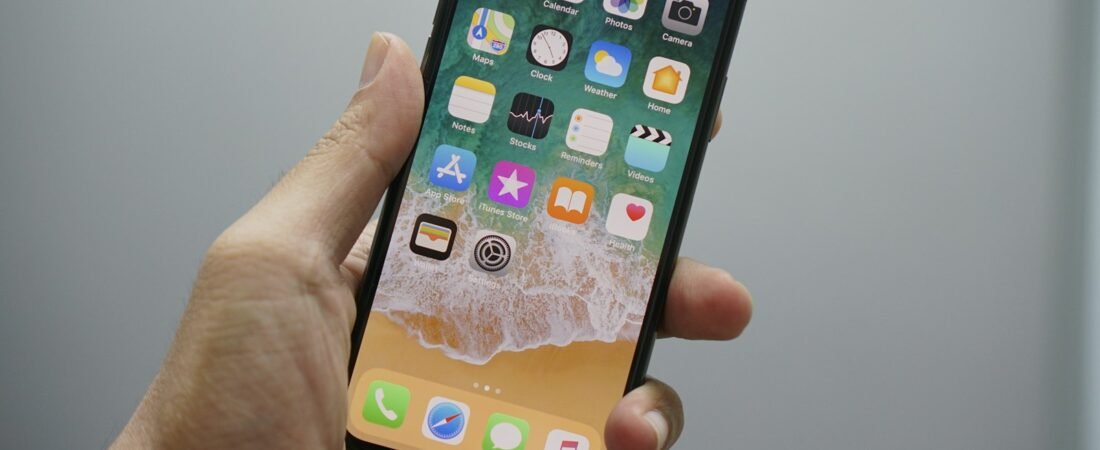
Quick answer: On iOS 18 or later, touch and hold an app’s icon, tap Require Face ID (or Touch ID or Passcode), and confirm. Choose Hide and Require Face ID instead to move it into a locked “Hidden” folder in your App Library.
For years, iPhone owners had to rely on clumsy workarounds to protect individual apps. Since iOS 18, it’s built in, and it takes about five seconds per app.
How to lock an app
- Find the app on your Home Screen or in the App Library.
- Touch and hold its icon until the quick-actions menu appears.
- Tap Require Face ID (on older models it says Touch ID or Passcode).
- Tap Require Face ID again to confirm.
Now, whenever anyone opens that app, your iPhone checks it’s really you first. The app’s content also stays out of search results and notification previews.
How to hide an app completely
For more privacy, follow the same steps but choose Hide and Require Face ID. The app disappears from your Home Screen and moves into a Hidden folder at the bottom of the App Library, which itself needs Face ID to open. Hidden apps won’t show notifications or appear in search.
Some built-in apps can be locked but not hidden, and a few system apps, such as Settings and Camera, can’t be locked at all.
How to unlock or unhide
- Locked app: touch and hold it again and choose Don’t Require Face ID.
- Hidden app: open the App Library, scroll to the bottom, open the Hidden folder with Face ID, touch and hold the app, and choose Don’t Require Face ID. It returns to the App Library, and you can drag it back to your Home Screen.
Good apps to lock
- Photos, especially before showing someone a single picture
- WhatsApp, Messages and email
- Banking, UPI and shopping apps
- Notes and Files
Don’t see the option?
Make sure you’re on iOS 18 or later (Settings → General → Software Update) and that you’ve set up a passcode and Face ID or Touch ID in Settings → Face ID & Passcode.
Found this useful? You’ll like our 12 hidden iPhone features.