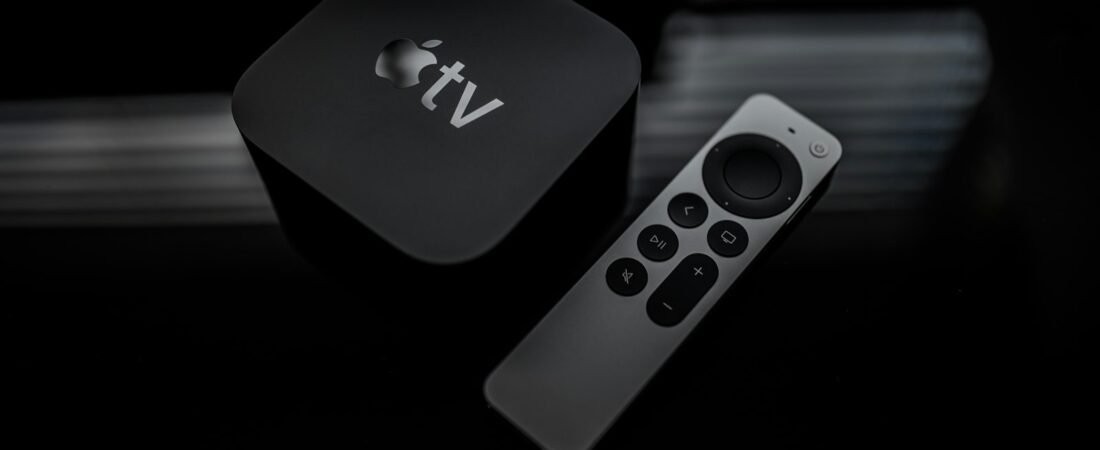
Quick answer: Go to Settings → System → Restart. If the screen is frozen, press and hold the Back button and the TV/Control Centre button on your Siri Remote together until the light on the Apple TV flashes. Still stuck? Unplug it for 10 seconds.
A quick restart fixes most Apple TV hiccups: an app that won’t load, stuttering video, AirPlay refusing to connect, or a remote that seems to be ignored. Here are three ways to do it, from gentlest to most drastic.
Method 1: From Settings
- Open Settings on the Apple TV.
- Select System.
- Select Restart.
Method 2: Remote shortcut (when it’s frozen)
With a Siri Remote (the newer, silver-and-black or all-silver remote), press and hold the Back button (◀ or “MENU” on older models) and the TV / Control Centre button at the same time. Keep holding until the status light on the front of the Apple TV flashes, then let go.
On the older Apple Remote (the thin aluminium one), hold Menu and Down together until the light flashes.
Method 3: Unplug it
If nothing responds, pull the power cable out of the Apple TV, wait about 10 seconds, and plug it back in. This is safe, but avoid doing it while the Apple TV is installing a software update.
Remote not responding at all?
- Charge it: plug the remote into a charger for 30 minutes.
- Re-pair it: point it at the Apple TV from close range and hold the Back and Volume Up buttons for about five seconds.
- Use your iPhone: open Control Centre and use the Apple TV Remote button. Add it in Settings → Control Centre if it’s missing.
Restarts aren’t helping?
- Update tvOS: Settings → System → Software Updates.
- Delete and reinstall the problem app.
- Restart your Wi-Fi router too. Many streaming issues are network issues, as our buffering guide explains.
- As a last resort, Settings → System → Reset. This erases settings and apps, so you’ll need to sign in again.